


-
Do you already use the sandbox extensively? Then this deadline comes with risk. We want to prevent integrations, workflows, and data flows from suddenly breaking, or your team having to put out fires right before a release.
-
Are you still using the sandbox only to a limited extent? Then this is the perfect moment to set up a solid sandbox approach right away, so you can test safely and deploy to production in a controlled way going forward.
If you would like to think this through with us, feel free to get in touch. We can then clearly outline the impact and advise on the route that fits best.

HubSpot wouldn't be HubSpot if they didn't keep constantly innovating. New updates are constantly being released - so many that sometimes you can't see the forest for the trees. But which updates really make an impact on your daily work? To make it easy for you, each month we select the most relevant HubSpot updates. So in just 15 minutes, you'll be fully up-to-date and ready to get the most out of HubSpot!

Content:
Update 1: Upcoming Sunset: Legacy Standard Sandbox
Update 2: Support for multiple teams in HubSpot
Update 3: Remove specific values from multi-checkbox properties with the Workflows Edit Record action
Update 4: Celebrate won deals with on-screen confetti
Update 5: How do you better manage & recognize spam in HubSpot Forms?
Update 6: Help Desk Spaces and Custom Views now available for Pro+ users
Update 7: How to make your Customer Agent smarter and test email responses better.
Update 8: How do you now follow followers of your LinkedIn Personal Accounts in HubSpot?
Update 9: How do you now add Custom and Cross-Object Reports to CRM records?
Update 10: Formula Fields in Custom Report Builder.
Update 11: How do you now track company progress through lifecycle stages?
Update 1: Upcoming Sunset: Legacy Standard Sandbox
On March 16, 2026, HubSpot will discontinue the Legacy Standard Sandbox. If you are using a legacy sandbox now and don't migrate in time, you will lose access to that sandbox after that date. In practice, that means that test environments, integration testing and release preparation could suddenly grind to a halt.

Update 2: Support Multiple Teams for Full Functionality.
HubSpot now allows users to be full functional members of multiple teams simultaneously. This means that team members have equal rights within all their teams for routing, workflows and reporting without limitations to one main team.
Why this is important
Many organizations work with teams across regions, departments or roles. Previously, users could only fully participate in one team, which created confusion and inefficient task distribution. With this update:
- Do all team members participate in routing rules and workflows
- Work is distributed more fairly and predictably
- Teams work together more efficiently, including in matrix structures
- Removes the distinction between main and additional teams
In short: more flexibility, less management and consistent routing.
Here's how it works ➡️ The team model in HubSpot has been simplified and now consists of two parts:
- Teams: Users can be members of multiple teams, all with full functionality. All team members are included in workflows, Help Desk routing and meeting round robins.
- Default Team: Each account retains one Default Team per user. This team determines personal settings such as record views, notifications and the default home page.
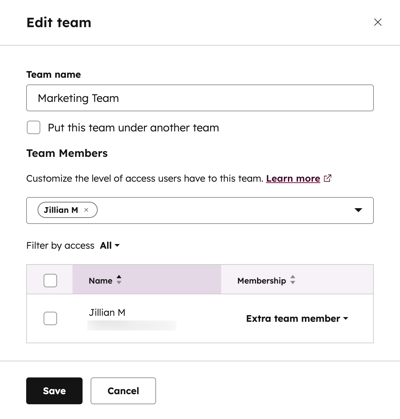
Note that if you use a team in a routing rule, all members of that team will receive work from now on. Therefore, check your team assignment to avoid surprises.
Inbox-based automatic assignment is not included in this update for now.
Availability
Professional Customer Platform & Enterprise Customer Platform.
Update 3: Remove specific values from multi-checkbox properties with the Workflows Edit Record action
HubSpot extends the Edit Record workflow action with a new option: you can now remove specific values from a multi-checkbox property, without deleting the entire field. This allows you to selectively edit lists within workflows.
Why this is important
The Edit Record action is one of the most powerful workflow actions in HubSpot. Until now, multi-checkbox properties often required you to clear all values and rebuild to remove just a few options. This caused:
- Unnecessarily complex workflows
- More chance of errors
- Additional maintenance and logic
This update keeps your workflows simpler and your CRM data accurate, without cumbersome workarounds.
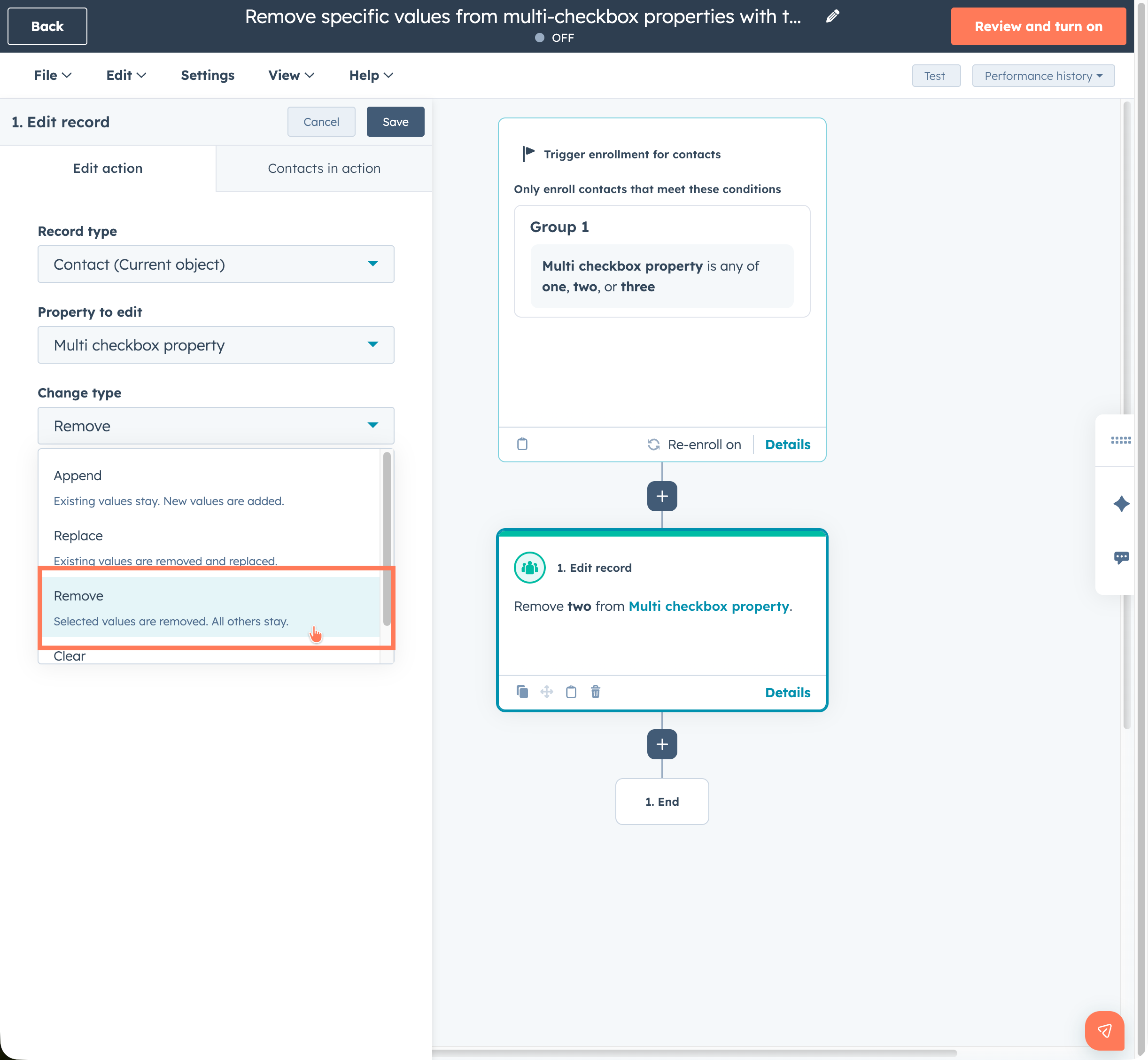
- Add the Edit Record action to your workflow.
- Under Property to edit, select a multi-checkbox property.
- Under Change type, select the new Remove option.
- Choose the specific values you want to remove from the field.
The remaining selected values are automatically retained.
Availability
Professional & Enterprise Customer Platform
Update 4: Four deals won with confetti on screen
HubSpot is making celebrating successes even more fun! From now on, you'll see confetti on the screen when a deal is won. This gives every closed success an instant visual celebration.

Availability
Professional & Enterprise Customer Platform.
Marketing, Sales, Service, Data and Smart CRM (Pro & Enterprise)
Update 5: How to better manage & recognize spam in HubSpot Forms?
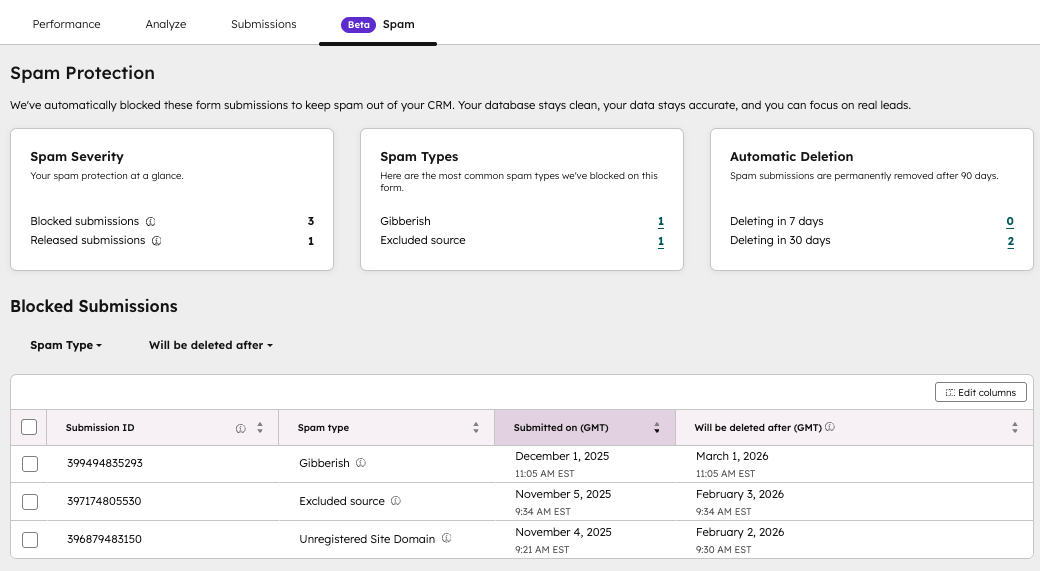
HubSpot is improving the way spam submissions are displayed and managed in forms. Spam is now easier to find, understand and clean up immediately.
Why this is important
Spam submissions were often difficult to locate and assess. With this update, you can get a quicker understanding of spam severity and take more targeted action, saving time and keeping your data cleaner.
Here's how it works
Per form:
Go to Marketing > Forms and open a form. In the new Spam tab, you'll see spam insights, blocked submissions and actions to view, release or (bulk) delete submissions.
Across all forms:
Go to Marketing > Forms > Analyze and open Spam submissions to view spam across all forms, filter and perform (bulk) actions.
In addition, spam protection settings such as Bot Filtering and reCAPTCHA are now accessible directly from the form details.
Availability
All hubs and tiers
Update 6: Help Desk Spaces and Custom Views now available for Pro+ users
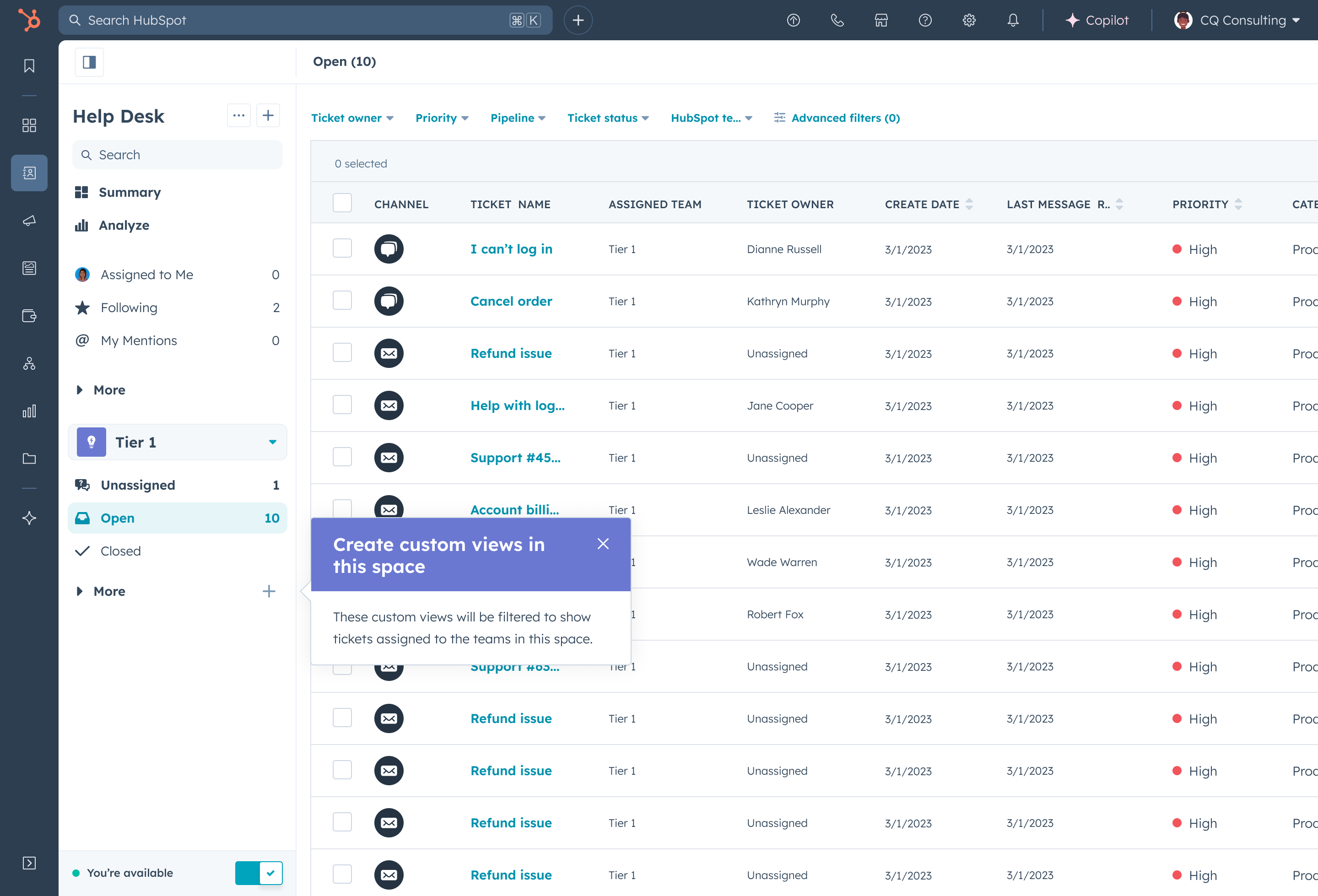
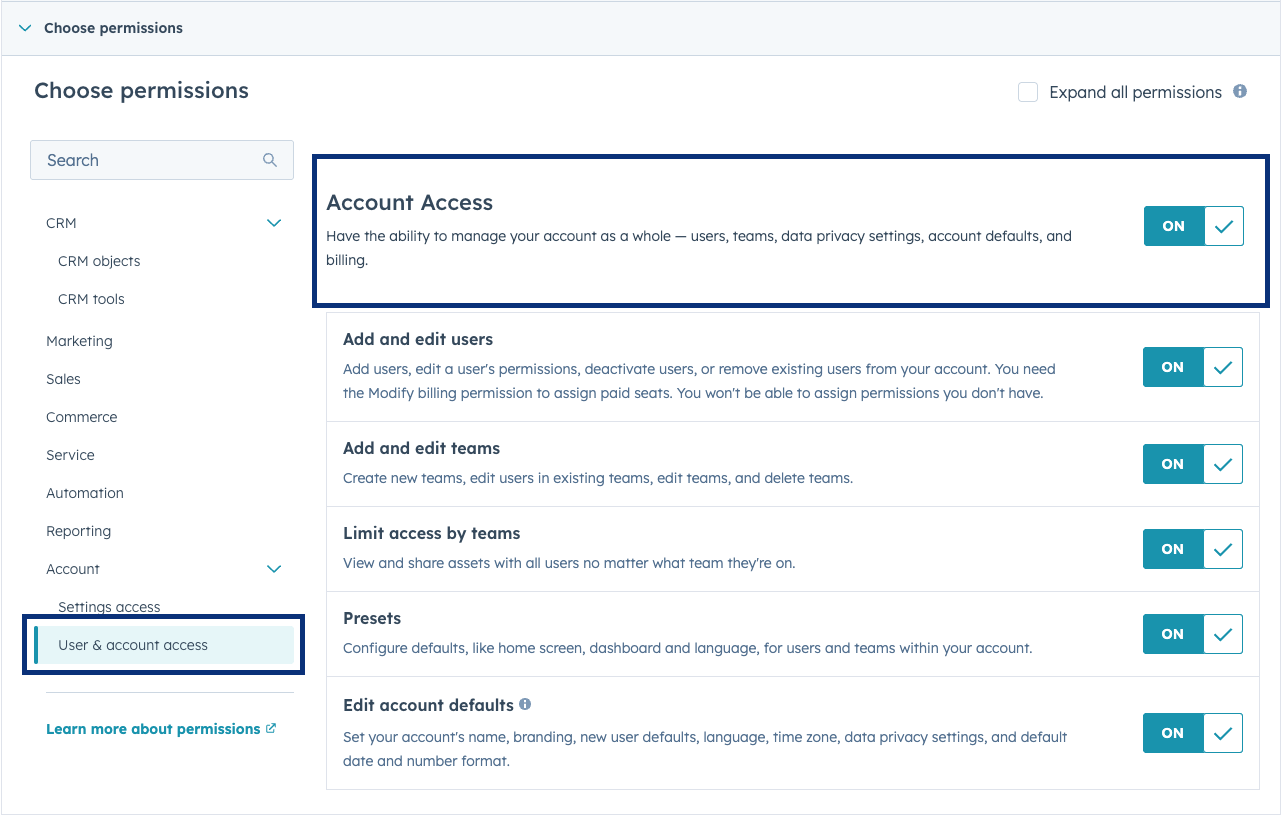
HubSpot is expanding Help Desk functionality by making Spaces and Custom Views available to Service Hub Pro+ customers and giving users with Account Access more control over managing these tools.
- Help Desk Spaces: Previously available only to Enterprise, are now also accessible to Pro tier customers. Spaces provide a team-based workspace where tickets are centrally organized and can be efficiently managed.
- Manage Custom Views & Spaces: Users with Account Access (admin-based) can now configure Spaces and custom views themselves, without having to go through a Super Admin for every change.
Why this is important
- More support teams can organize and resolve tickets faster.
- Team leads and frontline managers gain autonomy to customize their workspace without bottlenecks.
- Helps improve focus, efficiency and oversight within teams.
Here's how it works
- Spaces: A Service Seat is required to gain access. Admins create and manage Spaces in the help desk settings, while agents can switch directly between Spaces. Tickets are automatically assigned to the appropriate Space based on team members.
- Custom Views & Account Access: Users with Account Access can get access permissions to manage views and Spaces through Users & Teams. Custom view permissions must be enabled to make customizations.
Availability
Service Hub Pro and Enterprise (Service Seat required).
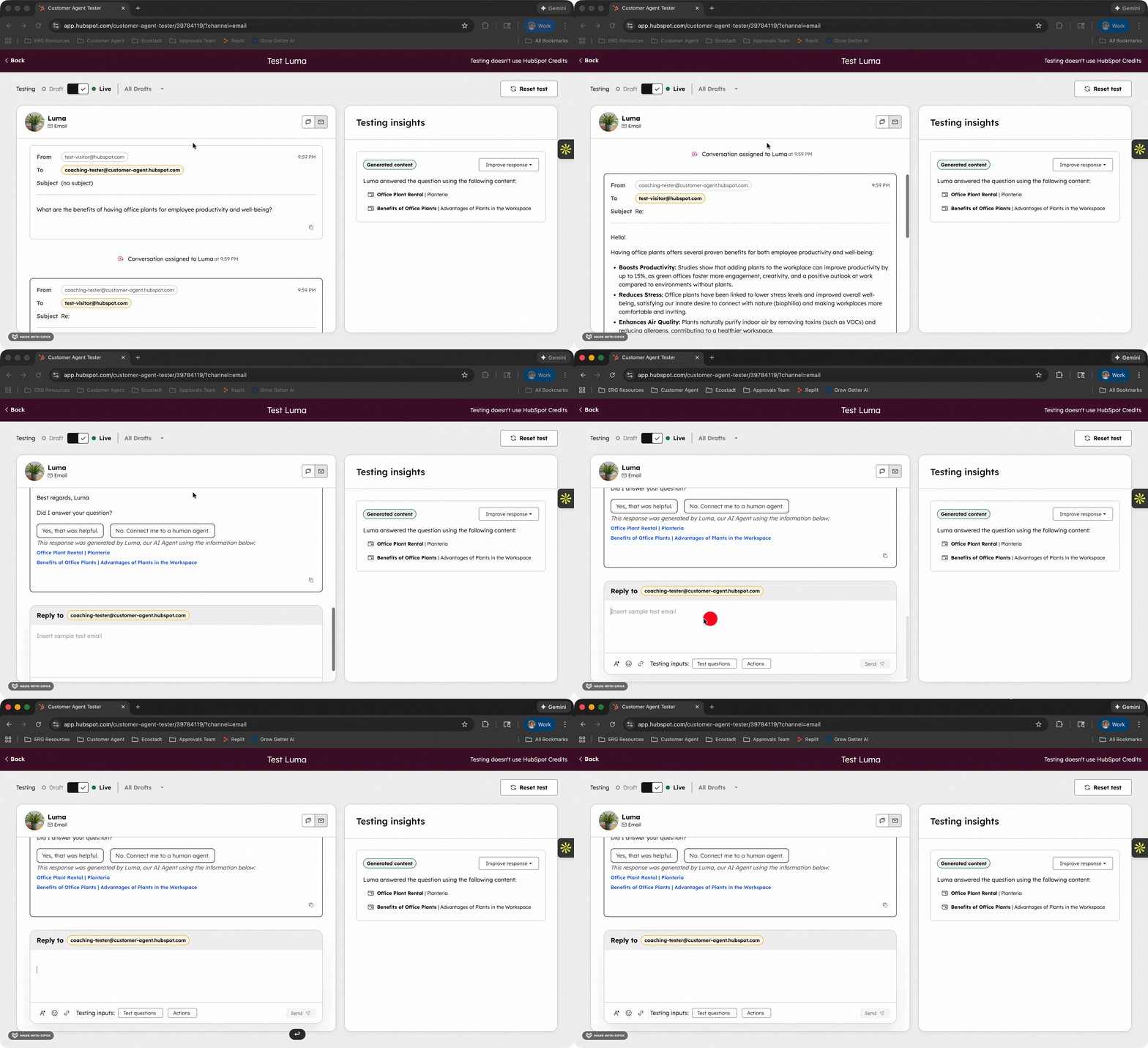
Update 7: How to make your Customer Agent smarter and test email responses better.
Did you know that your Customer Agent is now faster, more accurate, and more testable? With this update you can not only preview email responses, but your agent can also use structured data to answer customer questions. This makes your agent a lot smarter and more customer-centric.
- How do you view the entire email conversation from customer query to response?
- What knowledge sources does your agent use when answering questions?
- How do you manually add actions, handoffs or knowledge base articles to improve answers?
- Can you test different scenarios without having an email channel linked?
- How can your agent now use structured data from CSV, JSON or XML to provide instant crisp answers about inventory, pricing or SKUs, for example?
Why is this important?
Email requires well-formulated, complete responses. At the same time, your most valuable information often lives in spreadsheets and tables. Now your agent can:
- Provide and test professional email responses before they go live
- Instantly leverage your data for accurate product and pricing information
- Answer recurring questions faster and more consistently
- Convert more customers thanks to fewer misunderstandings and faster responses
Here's how it works
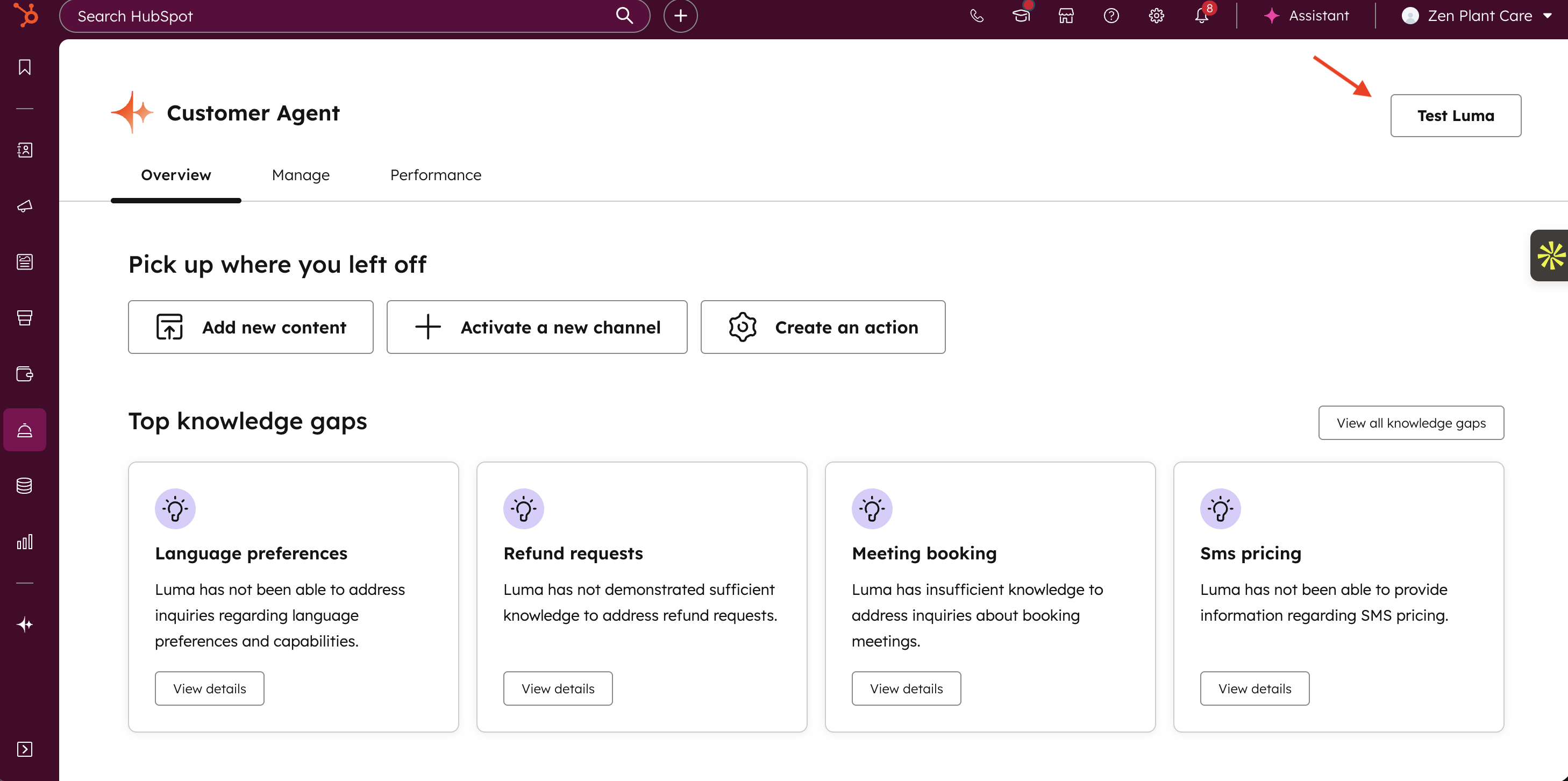
- Access your test environment from the overview page or a Customer Agent tab by clicking on "Test [Name of your Customer Agent]" in the upper right corner
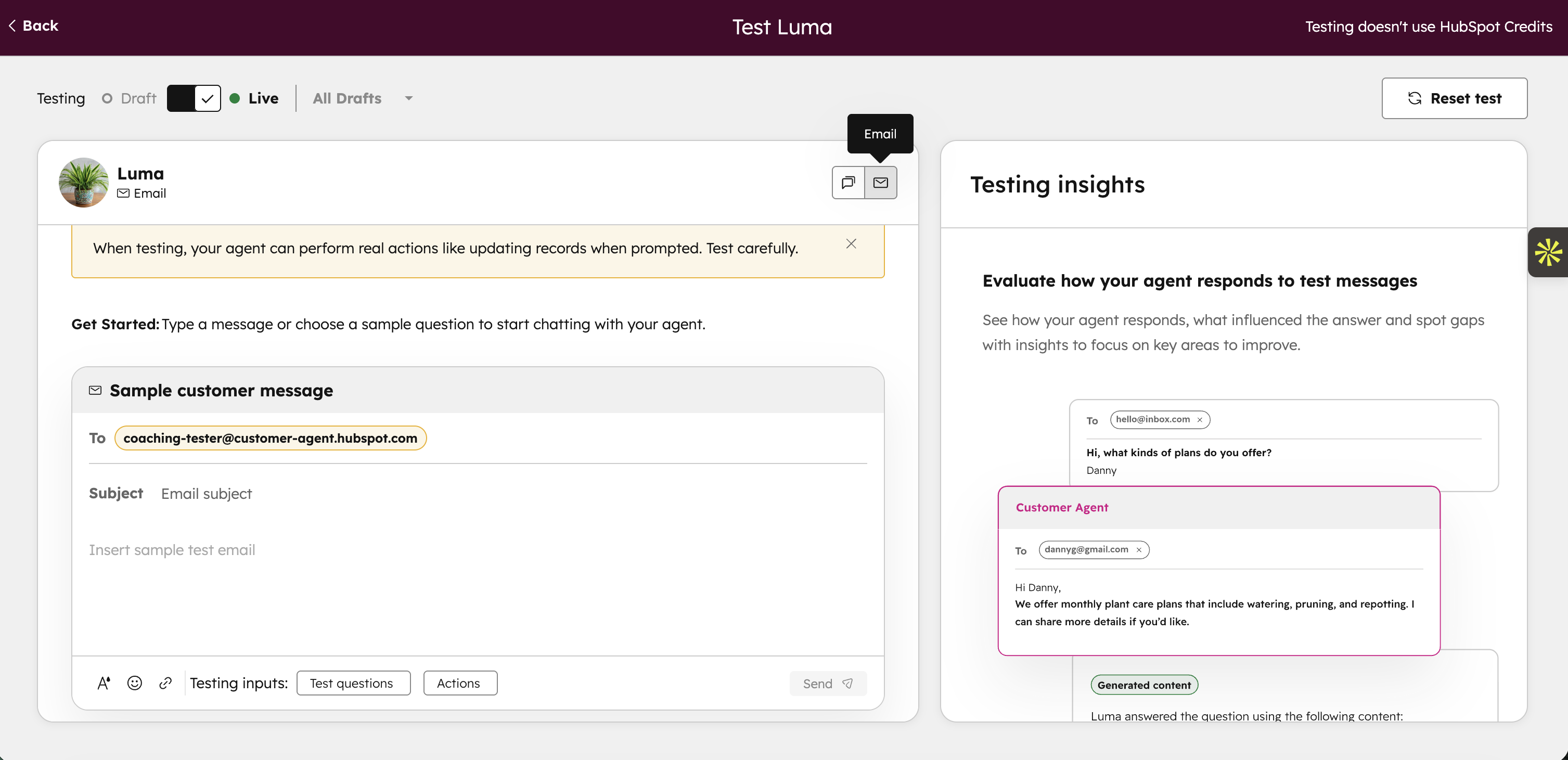
- Select "Email" as the channel in the test environment
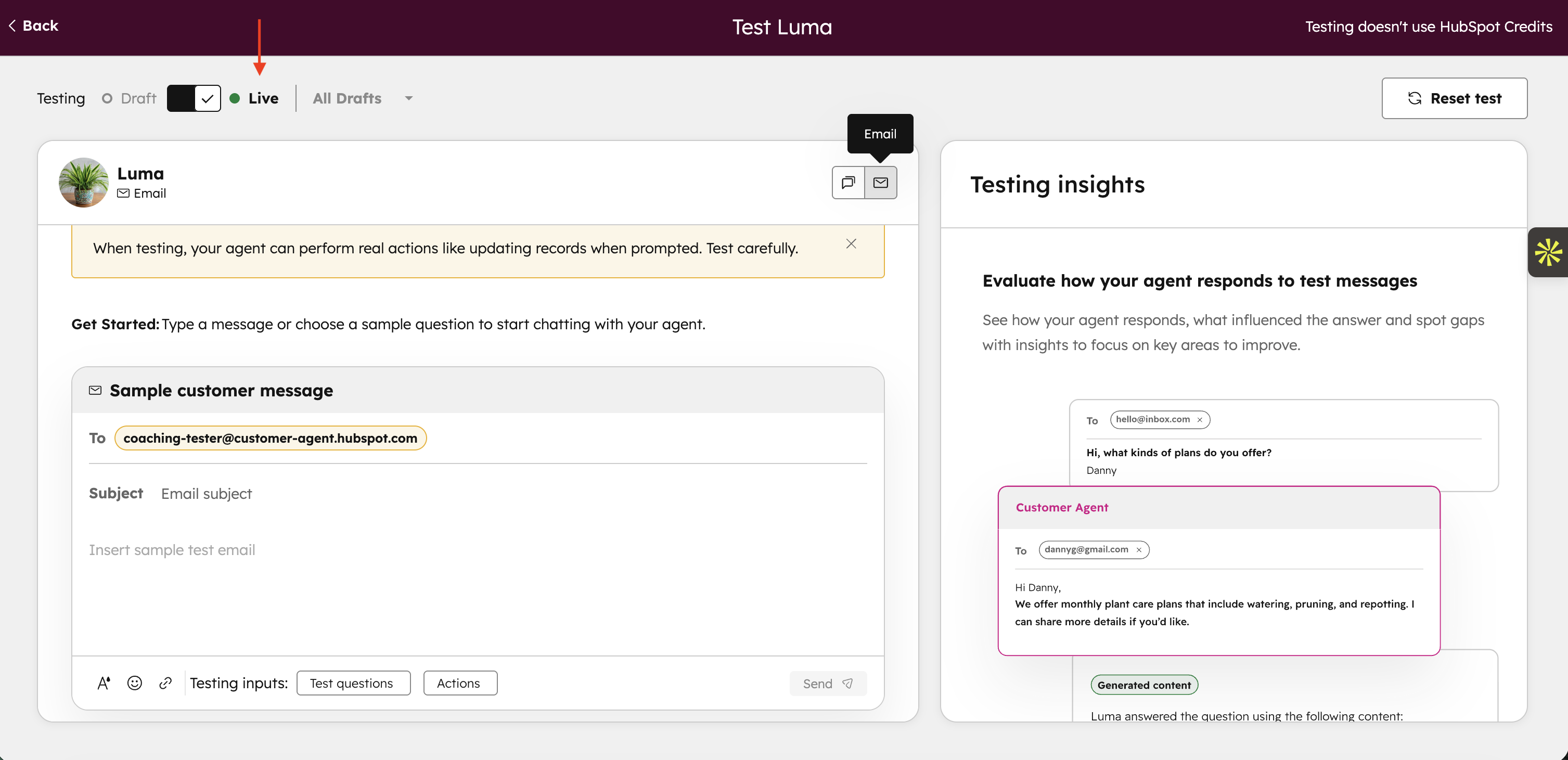
- Choose to test live (current version)
- Write a sample email of a customer question
- Send and view the full response from your agent
- Analyze knowledge resource usage and improve where necessary by adding a short answer, action, handoff trigger or new knowledge base article
- Test with multiple scenarios until you are satisfied
Availability
HubSpot Credits, Professional & Enterprise Customer Platform, Content Hub Professional & Enterprise, Marketing Hub Professional & Enterprise, Data Hub Professional & Enterprise, Sales Hub Professional & Enterprise, Service Hub Professional & Enterprise
Update 8: How do you now follow followers of your LinkedIn Personal Accounts in HubSpot?
HubSpot Social reporting can now collect and display follower statistics from LinkedIn Personal Accounts. To access this data, you must reconnect your LinkedIn Personal Account(s) to HubSpot.
Why this is important
LinkedIn is offering more and more statistics through its API for Personal Accounts. With this update, you can:
- View more LinkedIn performance metrics directly in HubSpot
- Gain better insight into the growth and engagement of your followers
- Consolidate LinkedIn performance within one view so you can report and analyze smarter
How it works.
- Reconnect your LinkedIn Personal Account(s) to HubSpot
- HubSpot gets new API permissions to retrieve follower stats
- You'll see daily updated follower statistics from now on
Please note that during the week of Jan. 19, 2026, HubSpot will start backfilling follower statistics for the past 365 days for all reconnected accounts. Reconnect your account(s) before Jan. 19 to include this historical data.
Availability
Professional Customer Platform, Enterprise Customer Platform, Marketing Hub Professional, Marketing Hub Enterprise

Update 9: How do you now add Custom and Cross-Object Reports to CRM records?
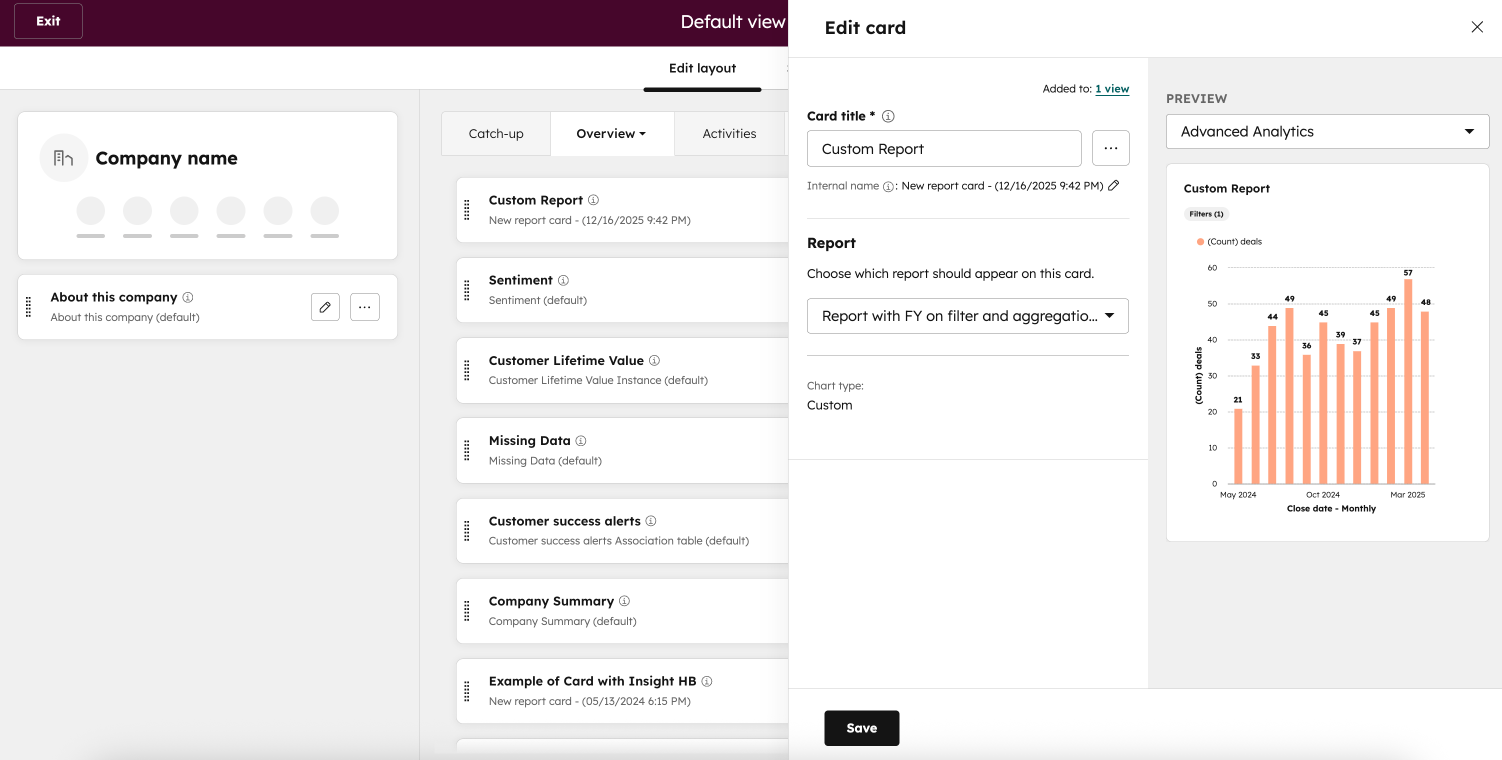
Did you know that you can now integrate advanced report cards directly on CRM records? This allows you to see merged data from multiple objects and external sources, and get a complete overview without leaving the record page.
What can you do now?
- How do you add a custom report to a CRM record? - Use record customization, add a Report card and select your custom report
- How do you filter the data that is displayed? - Choose Subject (only the current record), Associations (related records) or Unfiltered (all records from that object).
- What data can you combine? - Multiple objects and external sources, no longer limited to a single object
- How to configure it. - Add the map to your record views and adjust filters for maximum relevance
Why is this important?
CRM users need contextual insights without switching pages. Single-object reports were a limitation and made it difficult to get a complete picture of customer data. With this update, you have instant insight into all relevant data, conveniently on the same page.
Who gets this?
Commerce Hub Professional & Enterprise, Content Hub Professional & Enterprise, Marketing Hub Professional & Enterprise, Data Hub Professional & Enterprise, Sales Hub Professional & Enterprise, Service Hub Professional & Enterprise, Smart CRM Professional & Enterprise

Update 10: Formula Fields in Custom Report Builder
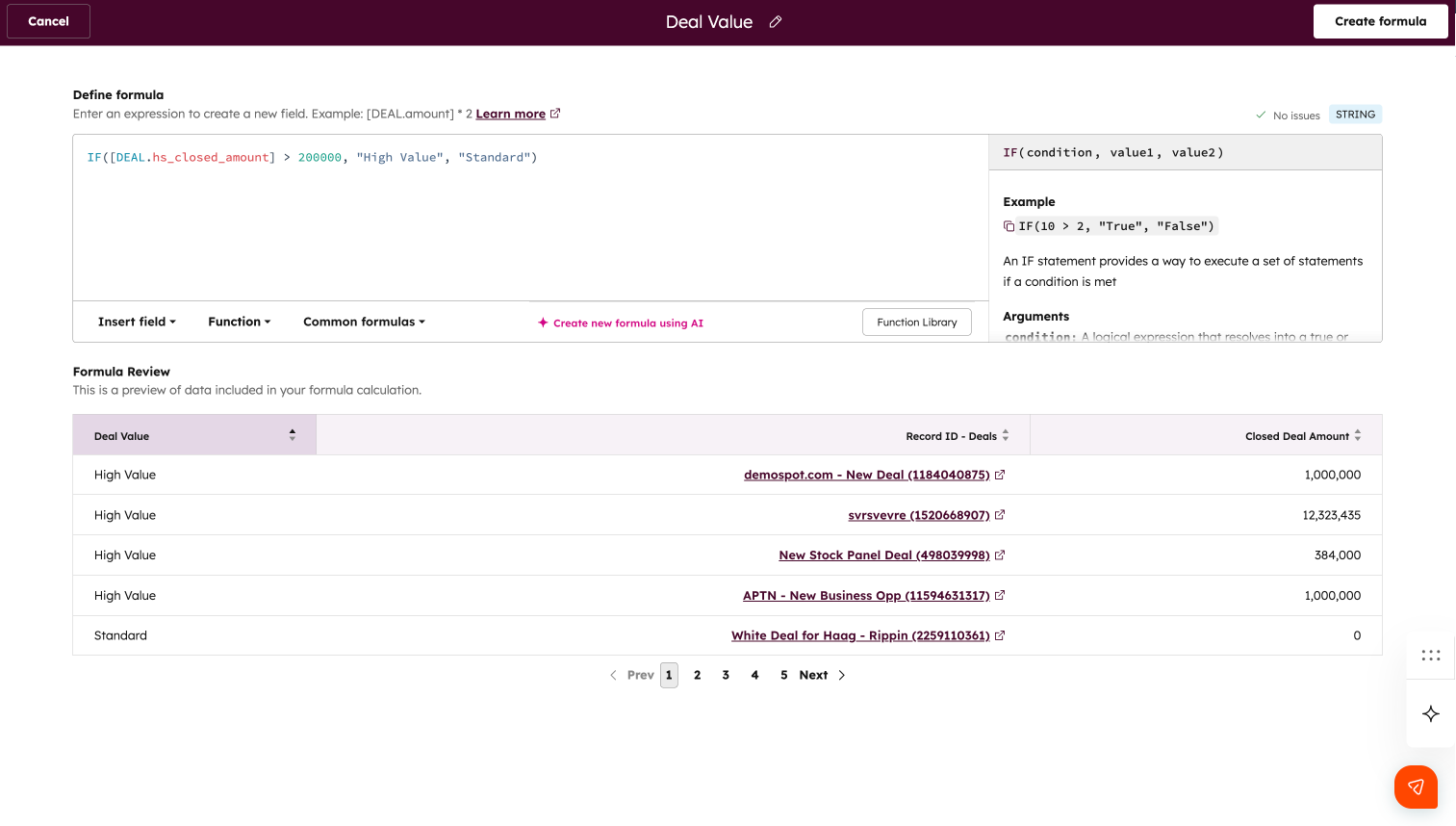
Did you know that with HubSpot's latest update, you can create calculated fields directly in your reports? Formula fields allow you to perform complex calculations, such as conversion rates, adjusted revenue or discounts, without exporting data to spreadsheets.
What can you do now?
- How do you create a formula field? - Click the new Add button in the Formula fields section of the configuration panel
- How do you build and test a formula? - Use the Formula Builder, choose fields, functions or let the AI assistant convert a natural language formula to syntax
- How do you see the result? - Use the preview table to instantly check how your formula works on the data
- Can you modify the formula? - Yes, click on the pencil icon to update the formula
- How do you handle empty values ("No value")? - You can keep empty values or convert them to zero, depending on your calculation
- How do you use the formula field in a report? - Add it as a column, use it as a filter, drill down or format just like any other field
Why is this important?
Formula fields take work away from HubSpot and make it easier to get real-time insights. For example, you can:
- Perform row-level calculations for precise data analysis
- Do aggregations without additional exports
- Make faster decisions based on accurate numbers
CMS Enterprise & Pro, Marketing Enterprise & Pro, Operations Enterprise & Pro, Sales Enterprise & Pro, Service Enterprise & Pro

Update 11: How do you now track business progress through lifecycle stages?
Did you know that you now have four new business properties to see how businesses move through their lifecycle? These properties provide insight into the timing and duration of each stage in your sales process.
What can you do now?
- What new properties are available?
- Date entered stage - when a company enters a stage
- Date exited internship - when a company exits an internship
- Latest time in internship - the last time a company was in this internship
- Cumulative time in internship - total time spent in this internship
- How do you use these properties? - Create reports to track companies' progress or automate workflows based on the time a company spends in an internship
- Are these properties available for custom lifecycle stages? - Yes, they are available for all custom internships you have created
Why is this important?
These properties allow you to better understand how businesses move through your sales process, discover opportunities for optimization and improve your conversion rates.
Availability
Content Hub Professional & Enterprise, Marketing Hub Professional & Enterprise, Data Hub Professional & Enterprise, Sales Hub Professional & Enterprise, Service Hub Professional & Enterprise, Smart CRM Professional & Enterprise


Questions about the Product Updates?
Schedule a demo with one of our specialists!

Until the next update! - At Webs, we'll keep you updated. 🚀

Want to get the most out of HubSpot? Subscribe to our newsletter, follow us on LinkedIn, or attend our HubSpot User Days!
Share this
Previous story
← HubSpot Product Updates: December 2025
Next story
HubSpot Product Updates: February 2026 →
HubSpot Product Updates: July 2025
.png?width=3815&height=1521&name=Product%20Updates%20July%20(image).png)
HubSpot Product Updates: July 2025
Aug 4, 2025, 11:02:25 AM
11
min read
HubSpot Product Updates: December 2025
HubSpot Product Updates: December 2025
Dec 15, 2025, 1:51:31 PM
15
min read
HubSpot Product Updates: February 2026
HubSpot Product Updates: February 2026
Mar 5, 2026, 9:05:34 AM
11
min read