


HubSpot wouldn't be HubSpot if they didn't keep constantly innovating. New updates are constantly being released - so many that sometimes you can't see the forest for the trees. But which updates really make an impact on your daily work? To make it easy for you, each month we select the most relevant HubSpot updates. So in just 15 minutes, you'll be fully up-to-date and ready to get the most out of HubSpot!

Update 2: Real-time TikTok Lead Syncing via Native Instant Forms
Update 3: The Agentic Automation Builder in Breeze Studio
Update 4: Email Design and Finetuning in Breeze Canvas
Update 5: Personalization Tokens in Rules-Based Chatflows Welcome Messages
Update 6: Workflow actions for Participant Statuses in Marketing Events
Update 7: SurveyMonkey surveys with Automatic Contact Attribution
Update 8: Select Subteams (Nested Teams) for Default Email Addresses in Help Desk
Update 9: AI Image Generation Upgraded to GPT Image 2.0
Update 1: New Recommendation categories in the AEO tool
Increase your organic visibility in AI search engines such as Perplexity, Gemini and ChatGPT with targeted actions for Social, Video and Outreach.
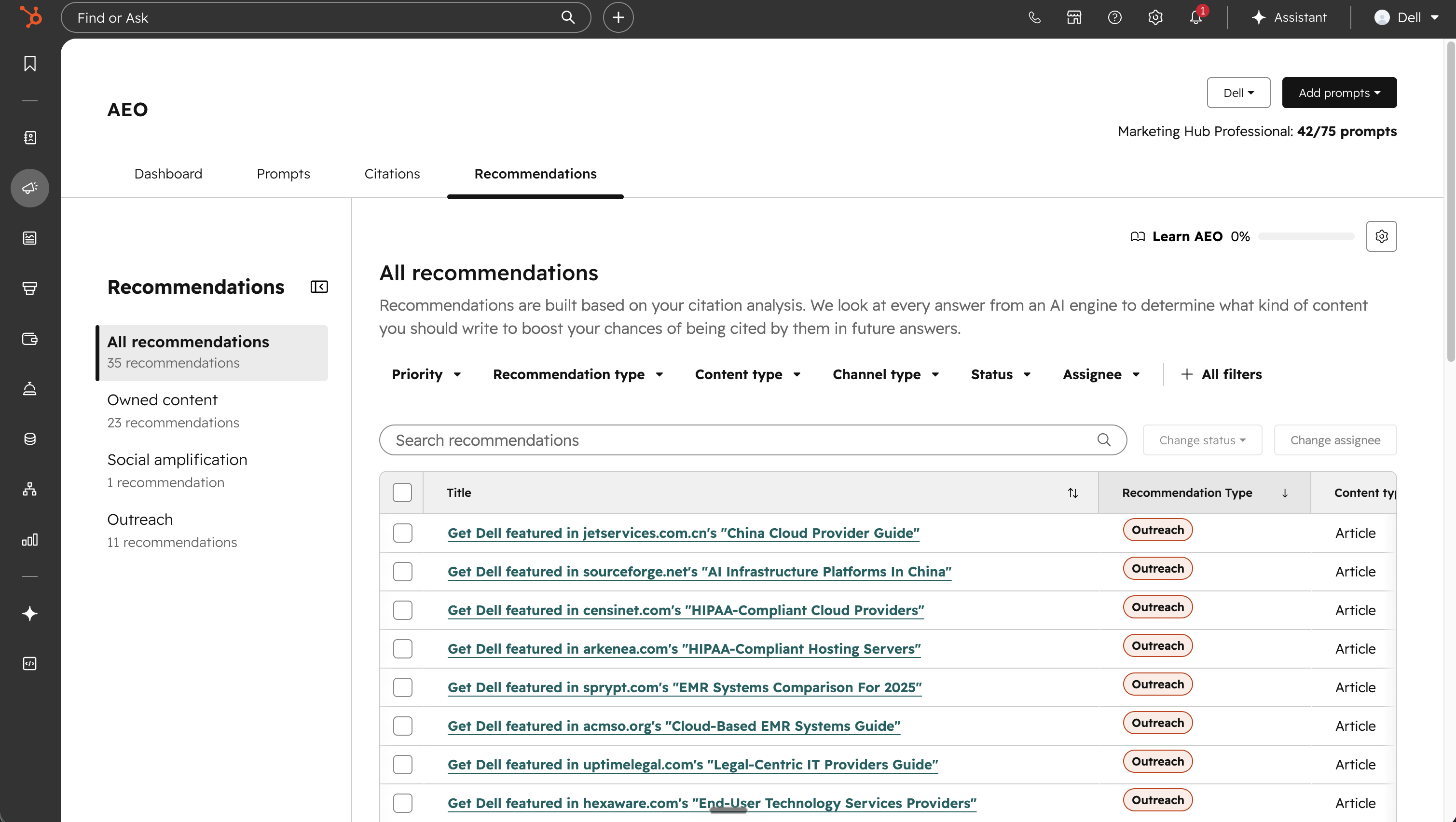
- Social Recommendations:
- Reddit: Displays current threads cited as sources by AI models. This lets your team know exactly where active participation or expertise is required.
- LinkedIn: Analyzes the topics your competitors claim authority on in AI replies and translates this into concrete sheets for your Thought Leadership program.
- Video Recommendations: Focuses entirely on YouTube. It identifies rising lines in AI source mentions for product and how-to searches, and provides immediate suggestions for YouTube videos or Shorts to produce.
- Outreach recommendations: Maps influential third-party publishers, review platforms and affiliates that serve as data sources for AI models, but where your brand mentions are still missing. This is a ready-made action list for your digital PR team.

Update 2: Real-time TikTok Lead Syncing
Get instant control of social leads and maximize your speed-to-lead by seamlessly integrating TikTok Instant Forms with your Smart CRM.
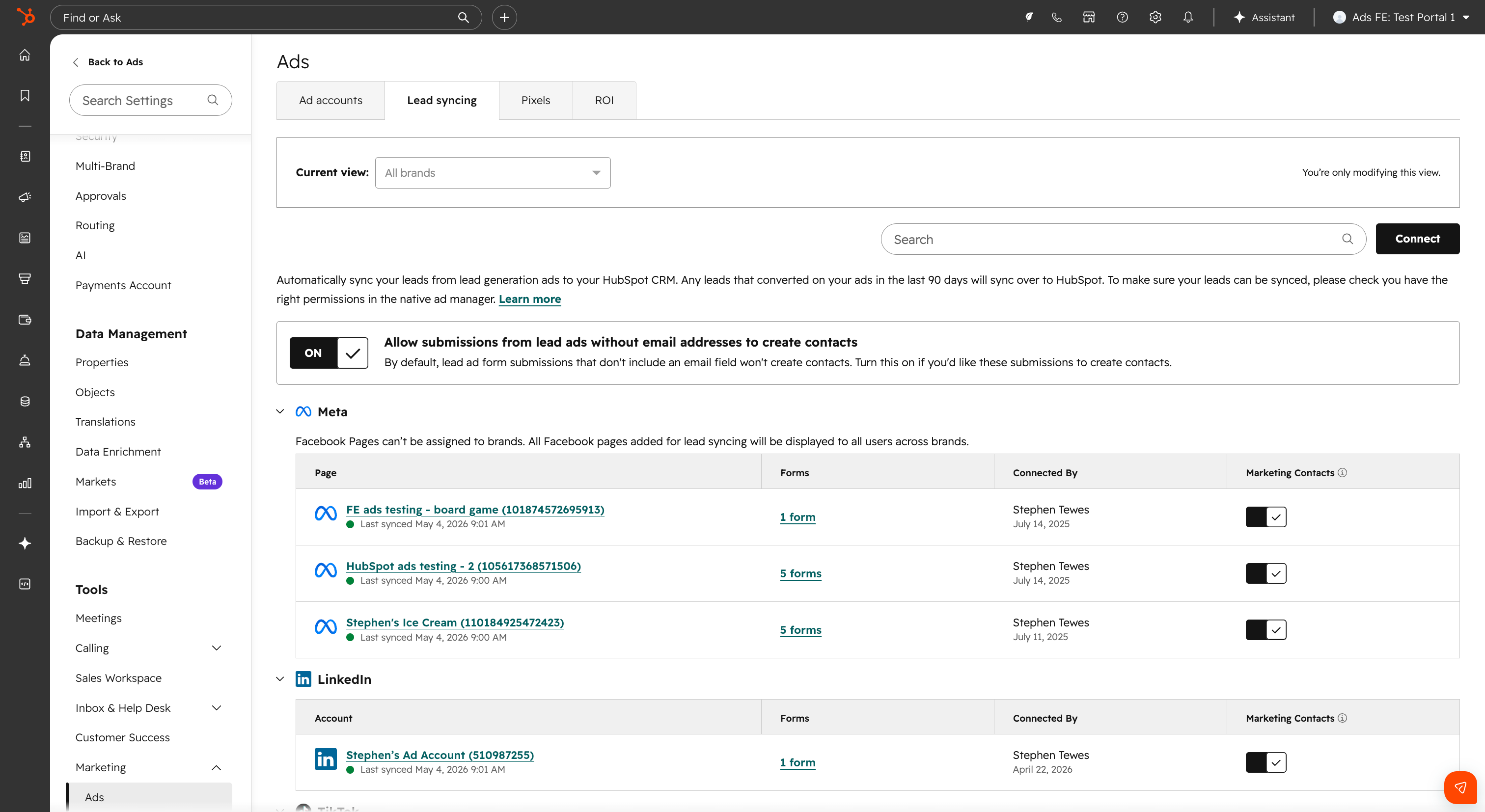
- Navigation: In HubSpot, go to Marketing > Ads and open the settings via the gear icon.
- Link: Under the Lead Syncing tab, choose 'Connect' and select the TikTok icon to link your ad account.
- History & Status: Determine your sync range. You can choose to shoot through only new leads, or also directly import leads from the past 90 days. Specify directly whether these leads should be marked as marketing contacts.
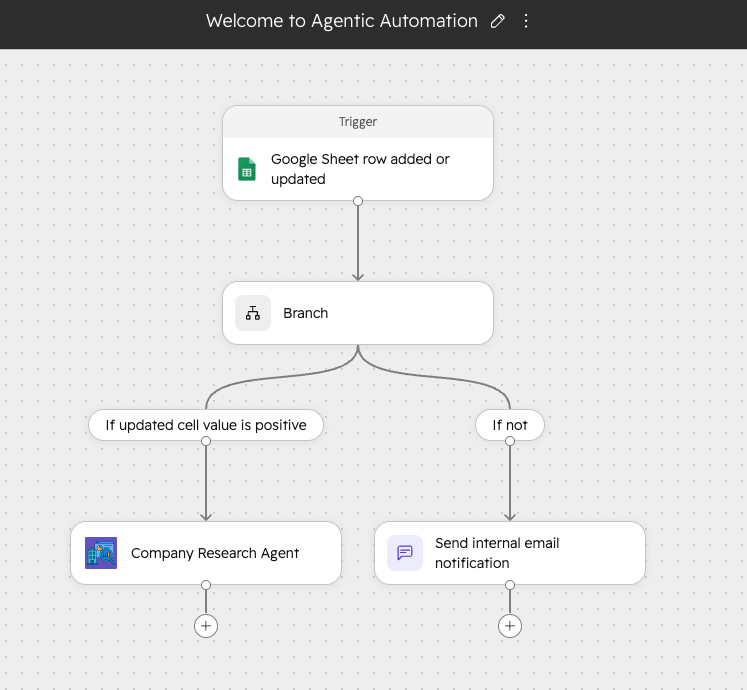
Update 3: The Agentic Automation Builder
Bring together workflows, AI agents and external data on one modern canvas and build intelligent business processes without a patchwork of tools.
Why this is important
Growing B2B organizations often run up against the limits of traditional marketing automation. Customer data is in HubSpot, invoicing in an ERP, and internal communication is through Slack. At the same time, AI agents (Breeze) are becoming a regular part of the operation. Until now, you had to choose: do I set up a workflow, or build a stand-alone AI agent?
The Agentic Automation Builder solves this fragmentation. It integrates traditional workflows and AI agents on a single visual canvas. This means you determine not only what an AI agent does, but also exactly when it starts, what CRM or external data it uses, and what automated sales or marketing action follows the AI decision. With this, you turn HubSpot from a CRM system into a central operating system for your entire business.
-
Navigation: From the left menu, go to the Breeze section and click on Breeze Studio.
-
Orchestration: In the upper right corner, click on the "Create" dropdown and select Workflow. You will immediately enter the new canvas environment.
-
Triggers & Actions: You can now trigger automations based on CRM data, schedules, webhooks or third-party integrations. Within the same canvas, you alternate linear steps (such as sending an email) with AI-driven decisions and ramifications.
Availability
All hubs & tiers.
Update 4: Email design and fine-tuning in Breeze Canvas
Speed up your content creation with a persistent, interactive workspace for AI-generated emails right next to your chat window.
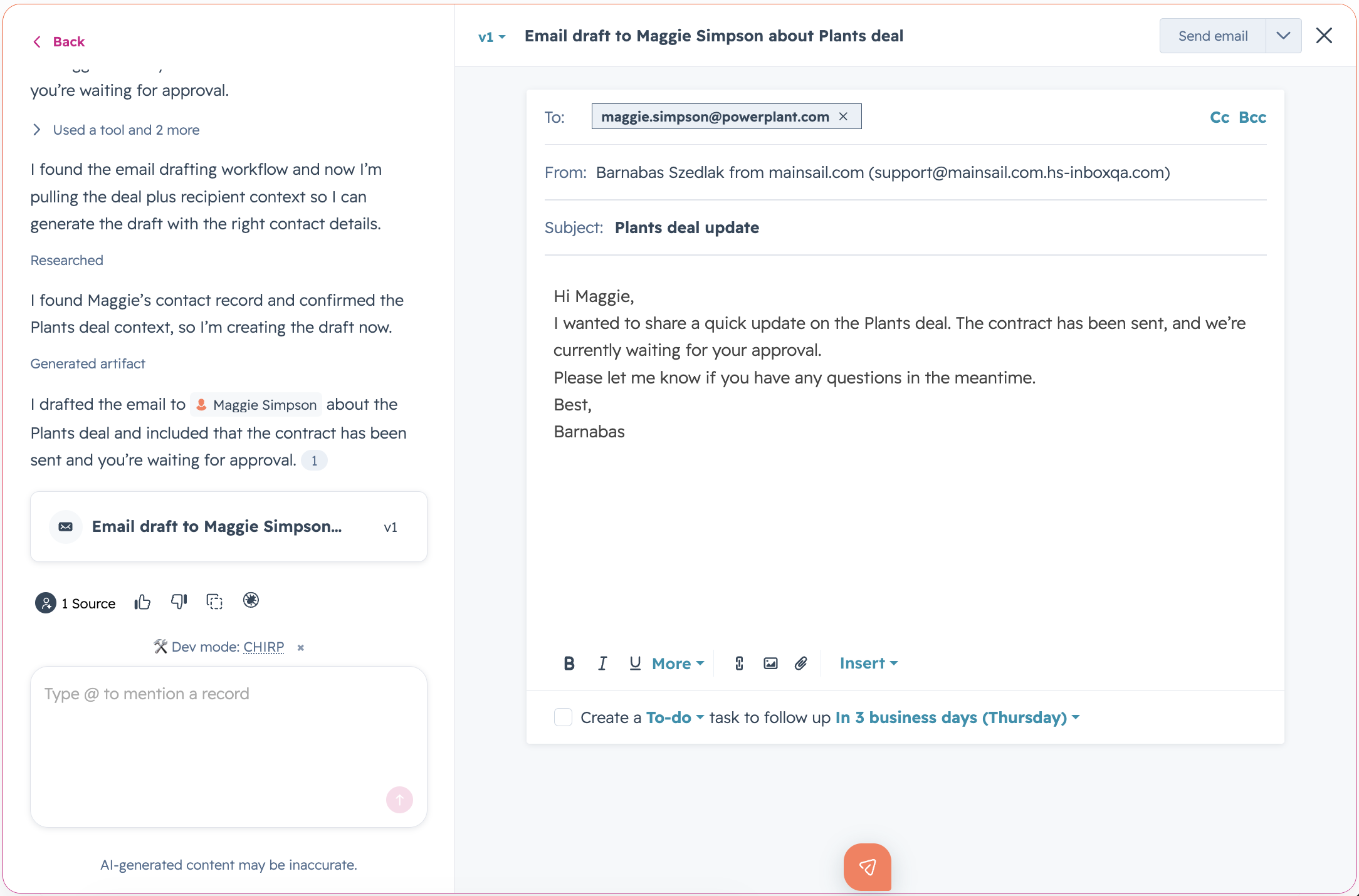
Here's how it works
The functionality works intuitively within the existing chat environment:
- Generate: Ask Breeze Assistant to write an email. The first draft appears in the chat.
- Activate: Click on the draft to open it in the Breeze Canvas on the right side of your screen.
- Iterate & Manage: Refine the text through successive chat prompts or edit it manually in the canvas. Using the version history at the top of the canvas, you can always restore previous versions with one click.
- Send: Copy the final text to your clipboard or send the email directly from the canvas.
Availability
All hubs & tiers.
Update 5: Personalization tokens in Live Chat Welcome Messages
Make an impact right from the first second by dynamically personalizing chat welcome messages based on CRM data.
Why this matters.
The first impression on your website determines the rest of the buyer journey. A generic greeting like "Hello, how can we help you?" doesn't align with what you already know about a returning lead or existing customer. It forces the visitor to start the conversation from scratch.
With this update, you extend the personalization power of email and landing pages to your live chat flows. Once a visitor is recognized (via tracking cookies), the chatbot instantly displays data such as first name, company name or most recent activity in the greeting. This increases engagement, shortens time-to-value and ensures a human, context-aware customer experience from the very first contact moment.
-
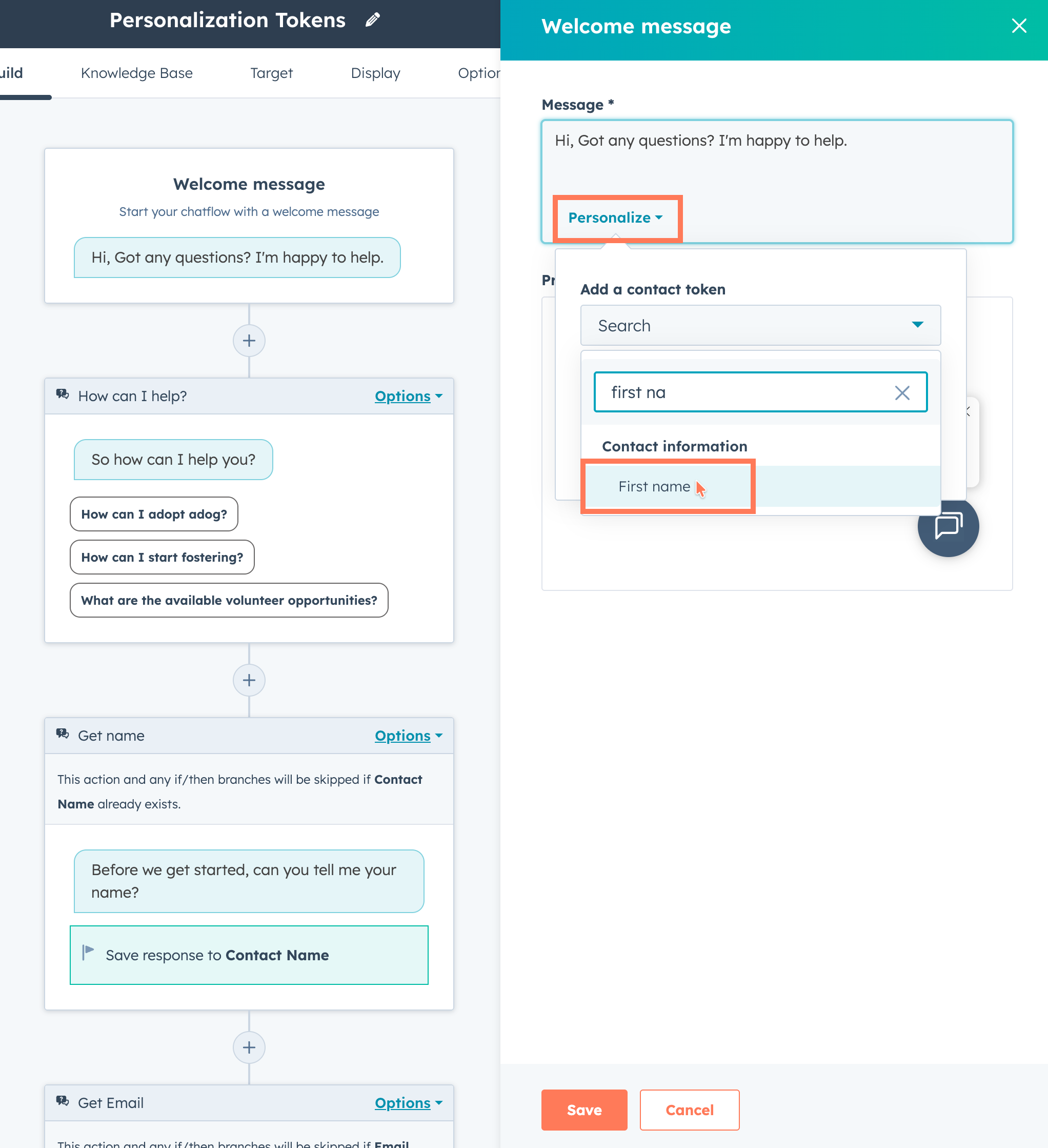
Setup: Navigate to a rules-based chatflow and click on the welcome message to edit it.
-
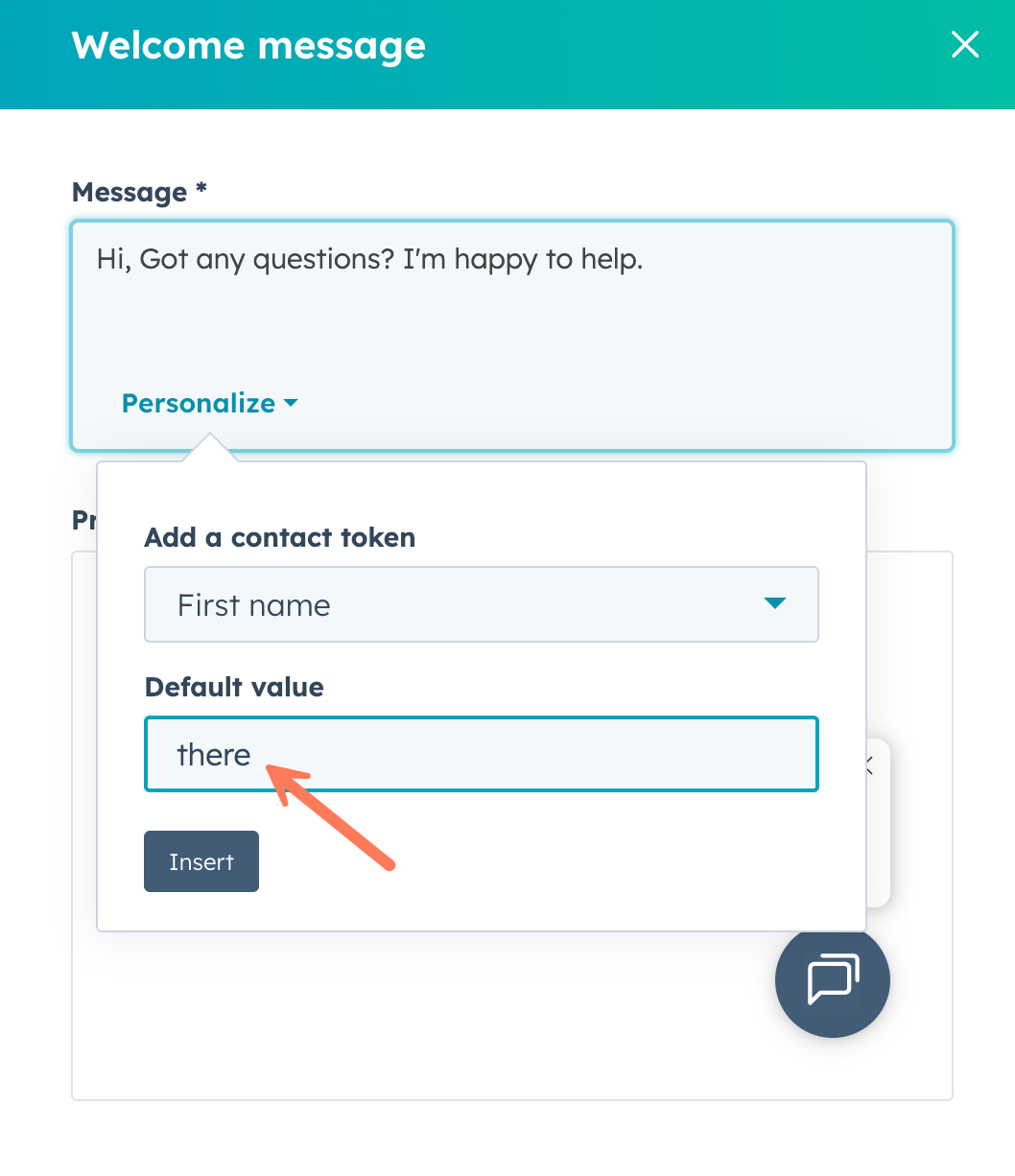
Add Tokens: Click on the new Personalize option and select the desired CRM property (e.g.
B2B Marketeeror). -
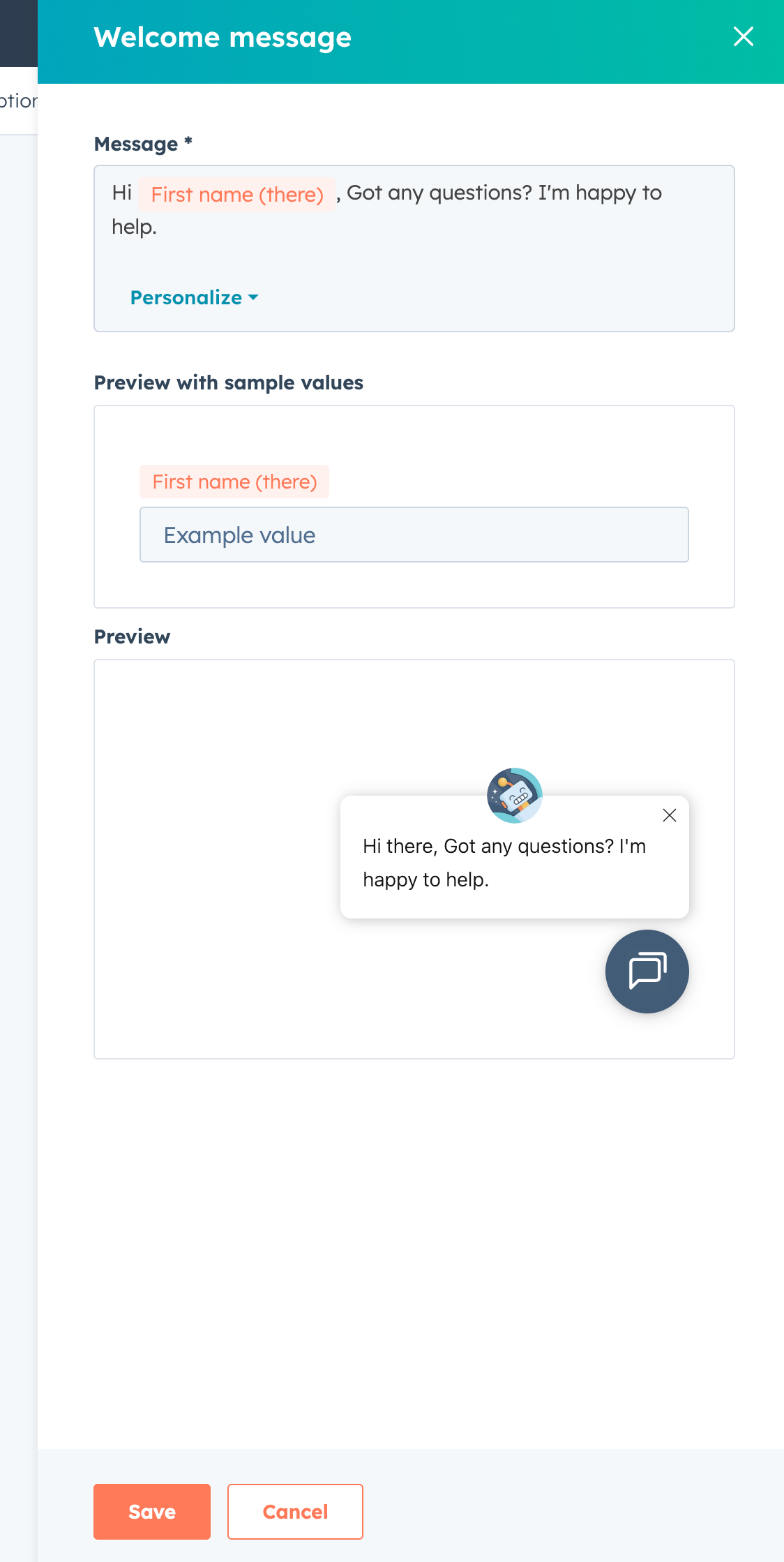
Set Fallback: Always enter a default value (default value). If a visitor is anonymous, this fallback ensures that the sentence remains grammatically correct (e.g., "Hi there" instead of "Hi [blank]").
-
Testing: Use the built-in simulator to check the display with both test data and fallback values before putting the chat flow live.
Availability
All hubs & tiers.
Update 6: Automation of Participant Statuses for Marketing Events.
Completely eliminate manual work around webinars and live events by automating registrations, attendance and cancellations native to your workflows.
Why this matters
B2B marketers know that event data is critical for lead scoring and sales follow-up. After all, the behavior of a no-show (cancelled/absent) requires a completely different nurture flow than that of an active attendee (present). Until now, HubSpot workflows only allowed you to automatically set contacts to "Registered. Tracking actual attendance or cancellations required manual imports or complex workarounds via external tools.
With this update, you automate the entire participation journey. By linking marketing events directly to engagement triggers (such as an onsite form inquiry or scanning a QR code), your event data remains accurate in real time. This enables your marketing and sales teams to start the right follow-up immediately after the event, without costly delays.
- Enrollment: Create a new workflow and define the enrollment trigger (for example: completed the check-in form at the event).
- Add action: Under the Marketing category, choose the Add participant to marketing event action.
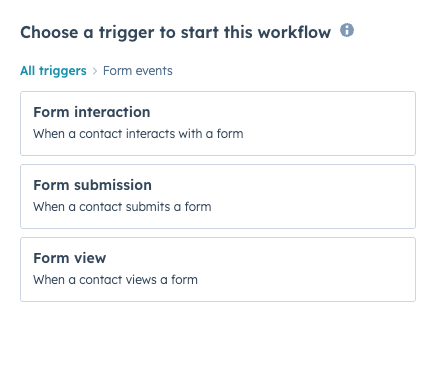
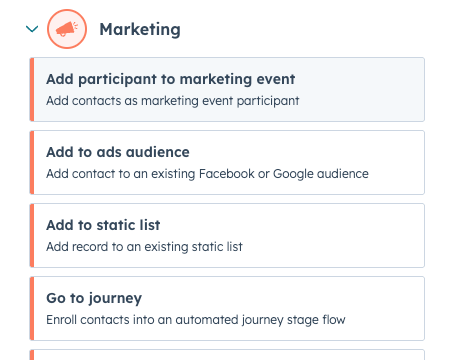
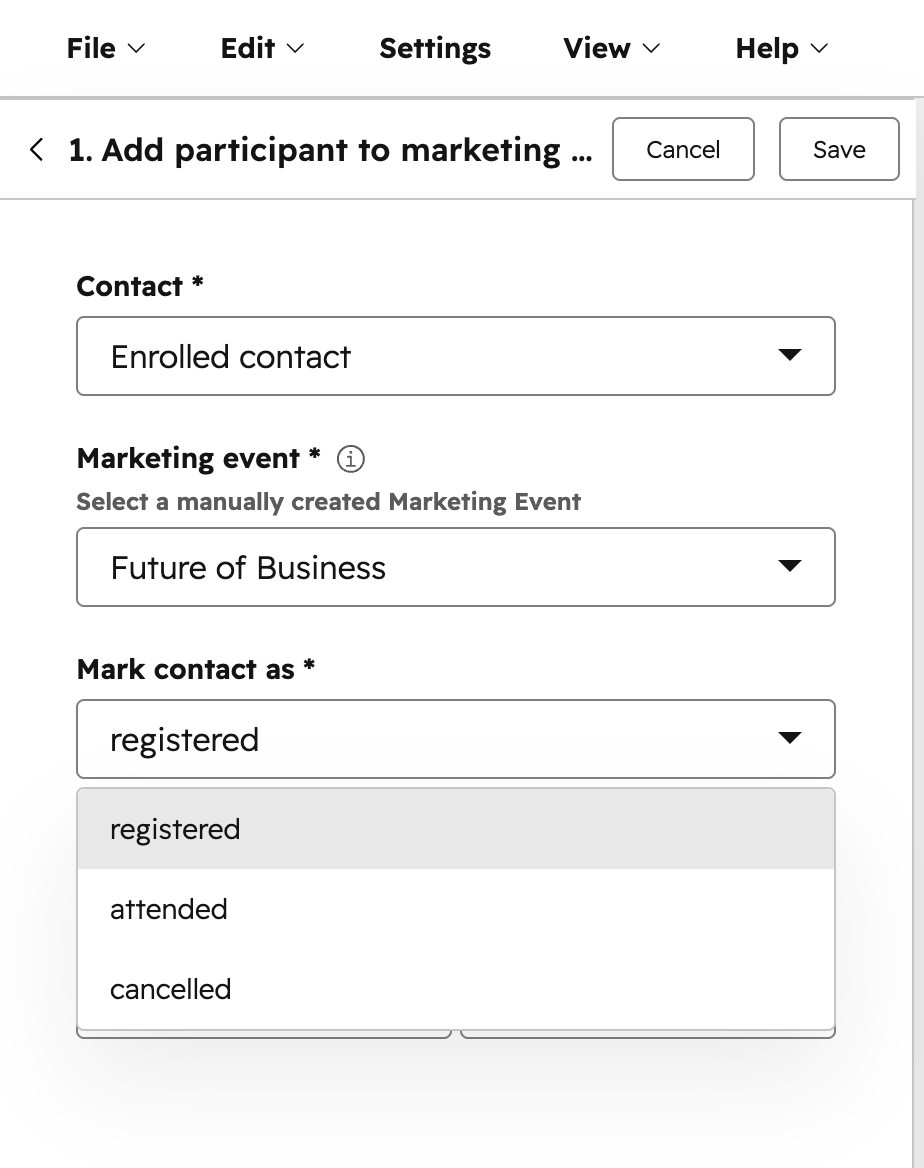
- Determine status: Select the manually created marketing event and choose the desired status: Registered, Attended, or Cancelled.
- Time Stamp: Optionally, you can directly record the specific participation date and time for watertight reporting.
⚠️ Important note: This workflow action is specifically designed for marketing events created manually within HubSpot. Events that flow in via external native integrations (such as Zoom or Eventbrite) are not included because those platforms use their own status links.
Availability
All hubs & tiers.
Update 7: SurveyMonkey surveys with Automatic Contact Attribution
Increase your response rates and enrich your CRM data by seamlessly integrating SurveyMonkey surveys into HubSpot emails - without additional input fields.
Why it matters
Collecting feedback is crucial for retention strategies (NPS) and product-market fit. However, in the B2B buyer journey, any kind of friction is a conversion killer. Previously, you had to ask respondents for their email address again in each survey to match the data to the correct CRM card. This caused lower response rates and data deformation due to typos.
With this update, HubSpot introduces automatic attribution via personalized URL variables. The contact is identified directly in the background. This significantly lowers the fill-in threshold and guarantees 100% clean data in your Smart CRM. You link feedback directly to customer information, enabling direct follow-up by sales or customer success.
-
Automatic: Authorize the link between HubSpot and SurveyMonkey once; HubSpot then automatically adds the variable to every survey URL you use in emails.
-
Manually: Manually add the custom variable to the URL structure yourself if you want to handle specific parameters.
All hubs & tiers.
Update 8: Select Subteams (Nested Teams) for Default Email Addresses in Help Desk
Optimize your support routing by increasing customer efficiency and eliminating routing errors with hierarchical team assignments.
Here's how it works
- Navigation: Go to Service > Help Desk and under the Ticket sources and routing section, click Channels.
- Configuration: Move the cursor over the desired team email address, click Edit and turn on the Enable this email as the default reply email address switch.
- Select Subteam: In the Select Team(s) dropdown, you can now select any specific subteam (nested team).
🛠️ Technical logic: When an employee types an email, HubSpot scans this user's primary team chain from bottom to top. Is no specific address set at the subteam level? Then the system automatically grabs the default address of the parent primary team. Only the primary team is considered; secondary team memberships are ignored.

Update 9: AI Image Generation Upgraded to GPT Image 2.0
Generate high-quality, branded visuals directly from your HubSpot File Picker with error-free text rendering and crisp prompt compliance.
Why this is important
Visuals determine the first micro-conversion on blogs and social media: the scroll stop. Until now, AI image generation in CRM platforms often caused operational friction. Prompts were half understood, faces distorted in post-processing, and text in images turned into illegible hieroglyphs. This forced marketing teams to divert to external tools such as Midjourney or Canva, which slowed time-to-market.
With the upgrade to GPT Image 2.0 within the HubSpot File Picker, this friction is gone. The model accurately follows complex instructions, supports multilingual text-in-image rendering and enables targeted edits without demolishing the rest of the image. This means: publishing unique, conversion-enhancing visuals faster, right from your existing workflow.
-
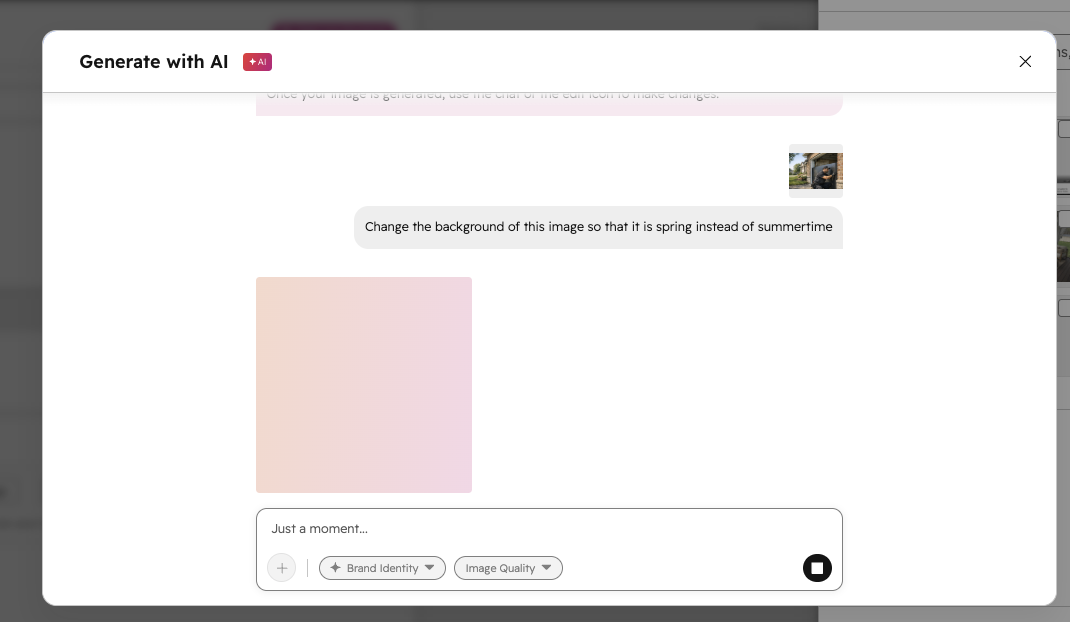
Activate: When adding media, click Add image and select Generate image at the bottom.
-
Prompts & Editing: Type your instruction. Use the new
+ buttonto upload an existing reference image or make specific AI adjustments to an existing file. -
Brand Identity: Enable the "Brand Identity" feature to automatically match the output with your preset brand colors and visual style. HubSpot directly applies the GPT Image 2.0 model behind the scenes.


Questions about the Product Updates?
Schedule a demo with one of our specialists!

Until the next update! - At Webs, we'll keep you updated. 🚀

Want to get the most out of HubSpot? Subscribe to our newsletter, follow us on LinkedIn, or attend our HubSpot User Days!
Share this
HubSpot Product Updates: February 2025
HubSpot Product Updates: June 2026